How to Track Craft Fair Sales in Shopify POS (Step by Step)
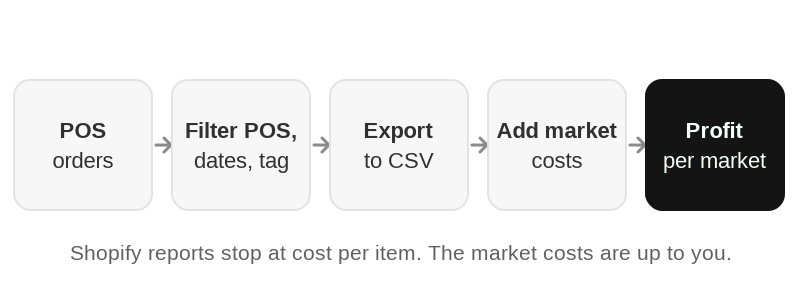
Shopify POS is great at ringing up sales at your booth, but it doesn't have a "craft fair" or "event" built in. If you want to track craft fair sales in Shopify POS one market at a time, you have to separate them yourself, using dates, locations or order tags. This guide shows the three ways vendors do it, how to export a market's orders to a spreadsheet, and where the built-in reports stop, which is right before the number you actually care about: profit after the booth fee.
Everything here is based on Shopify's own Help Center pages (linked below), current as of November 2026. Menus change from time to time, so if a button has moved, search the Help Center for the report name.
The problem: Shopify sees sales, not events
When you sell at a fair, Shopify records each order with its date and time, the sales channel (Point of Sale), the POS location and the device. What it doesn't record is "this was the Holiday Makers Market." To get one market's sales you need a way to pick out exactly those orders. There are three common ways.
Option 1: Filter by date range (simplest)
If you only sell in person at one market on a given day, the date is all you need.
- In the Shopify admin, go to Analytics then Reports.
- Open the Retail sales reports. Shopify notes that these reports include only sales made at a POS location, so online orders from the same day stay out.
- Open Total sales by POS location (or POS total sales by product to see what sold).
- Set the date range to the market's days. Reports let you pick a fixed or rolling date range.
This works well for weekend markets. It breaks down when you sell at two events on the same day, or when you also ring up a sale at home on a market day.
Option 2: One POS location for markets, or one per event
Shopify lets you sell from multiple locations, and reports can group sales by POS location. Some vendors create a location for each event. Before you do, know the trade-offs from Shopify's locations page:
- There's a limit. The Basic, Grow and Advanced plans allow up to 10 active locations. Deactivated locations don't count toward the limit.
- Inventory lives at a location. To sell from an event location, its stock has to be there.
- Closing it out takes a step. If a location still has inventory or orders when you deactivate it, Shopify prompts you to fulfill the orders and reassign the inventory to another location.
A simpler setup that many vendors prefer: one location just for in-person markets (for example "Market booth"), separate from your home or studio location. Then you combine it with the date range from Option 1. Your market sales never mix with other in-person sales, and you don't have to create and close a location for every fair.
Option 3: Tag each market's orders
Tags let you label orders with the event name, like holiday-makers-2026. According to Shopify's tags guide, you can add tags on an order's page in the admin, or in bulk by selecting orders on the Orders page.
To automate part of it, Shopify Flow is a free app on the Basic, Grow, Advanced and Plus plans. Its Add order tags action has templates such as "Tag orders created on Point of Sale (POS)". That tags every POS order the same way, so you'd still add the event name yourself, but it's a useful start.
Tags take a few minutes after each market. In return, filtering by tag finds exactly that event's orders, even years later.
How to export one market's orders to a CSV
Reports give you totals. A CSV gives you every order, which you need for a spreadsheet or for comparing markets.
- Go to Orders in the admin.
- Filter the list. Shopify's order list can be narrowed by sales channel, date range and tags, among others. Pick Point of Sale and the market's dates (or its tag).
- Click Export. You can export the current page, a selection, or orders by date. Large exports and exports by date are emailed to you.
Useful columns in the export include Source (POS), Location, Device ID, Employee and Payment Method. One thing to watch: the file has one line per item, so an order with three items takes three lines. When you add up totals, count each order once.
Cash, Venmo and Zelle
Two Shopify POS features help keep every payment in the same place:
- Cash tracking. POS register sessions record your starting float, cash added or removed and the final count, so you can check the cash box against the expected amount.
- Custom payment types. For payments that Shopify doesn't process, you can add a custom payment type in the Point of Sale settings. Shopify describes these as being for tracking purposes. If you name one "Venmo" and another "Zelle," those sales are recorded on the order with that payment type, and show up in your reports and in the export's Payment Method column.
If you take a payment outside the POS entirely, write it down right away and add it to the market's sales later. Our craft fair expenses checklist includes a simple log for that.
Where Shopify's reports stop
This is the part that surprises people. Shopify does have profit reports, including Gross profit by POS location. But the profit they show comes from the cost per item you enter on your products: "Profit is reported only for products and variants that had a cost recorded at the time they were sold."
So the report can tell you sales minus product costs. It has no place for the costs of the market itself:
- the booth fee and application fee
- gas, parking and tolls
- food, a hotel, insurance or a helper
For the real profit of a market you have to subtract those yourself. Here's an example for a Saturday market tracked with a "Market booth" location and the date:
| Amount | |
|---|---|
| POS sales that day at "Market booth" | $940.00 |
| Gross profit shown in the report (sales minus cost per item) | $640.00 |
| Card fees (from your payout details) | −$27.80 |
| Booth fee | −$75.00 |
| Gas and parking | −$18.00 |
| Lunch and coffee | −$14.00 |
| Profit for the market | $505.20 |
The report's $640 isn't wrong. It just answers a different question. You can do the last five lines in the free craft fair profit calculator, or keep one row per market in a craft fair profit spreadsheet. Our guide on how to calculate craft fair profit walks through every cost.
A note on the POS app itself: the Daily Sales report inside Shopify POS shows today's sales and compares them with the same day last week, but Shopify lists it as a POS Pro feature, and you can't change its date range. For a market from last month, use the admin reports.
A routine that takes ten minutes per market
- Before the season, set up one location for markets and custom payment types for the apps you accept.
- At the market, ring up everything in POS, including Venmo and Zelle as their custom types.
- That evening, tag the day's POS orders with the event name, or note the date if you only sell at one event per day.
- Pull the market's sales from Total sales by POS location for those dates.
- Add the market's costs and your hours, and save the profit with a short note about the day.
For multi-day shows, do steps 3 to 5 for each day too. Our guide to multi-day craft show goals explains why per-day numbers matter.
FAQ
Can Shopify POS show sales for one craft fair?
Not as an event, but you can get there. Use the market's date range with the POS location you sell from, or tag the event's orders and filter by tag. The Retail sales reports only include POS sales, so online orders stay out.
Should I create a new location for every craft fair?
You can, but the Basic, Grow and Advanced plans allow 10 active locations, each location needs its own inventory, and closing one out means reassigning that inventory. Many vendors use one location for all markets and separate events by date or tag.
Does Shopify show profit per craft fair?
Shopify's profit reports, including Gross profit by POS location, subtract the cost per item you've entered for each product. They don't include booth fees, travel or food, so you need to subtract those yourself.
How do I record Venmo or Zelle payments in Shopify POS?
Add a custom payment type for each one in your Point of Sale settings, then choose it at checkout. The sale is recorded on the order with that payment type, which keeps all of a market's sales in one place.